
Integrations and migration
How to migrate videos from VTurb to Moviie
Use the Moviie extension to detect your VTurb library, select videos, and follow the migration through final playback.
Use this flow to copy videos from your VTurb library directly to Moviie without downloading each file to your computer.
Before you start
Confirm that:
- the Moviie extension is installed and up to date;
- your Moviie organization appears at the top of the panel;
- you are signed in to the correct account in VTurb My videos;
- you are authorized to migrate the selected videos.
The extension does not ask for your VTurb password or an API key. It identifies the videos rendered in the open library and uses the media made available by the player itself.
Detect the VTurb library
- Open My videos in VTurb and wait for the table to finish loading.
- Open the Moviie extension in the browser side panel.
- Select the Import tab.
- Confirm the VTurb source and the number of detected videos.
- Select the videos you want to copy or use Select all.
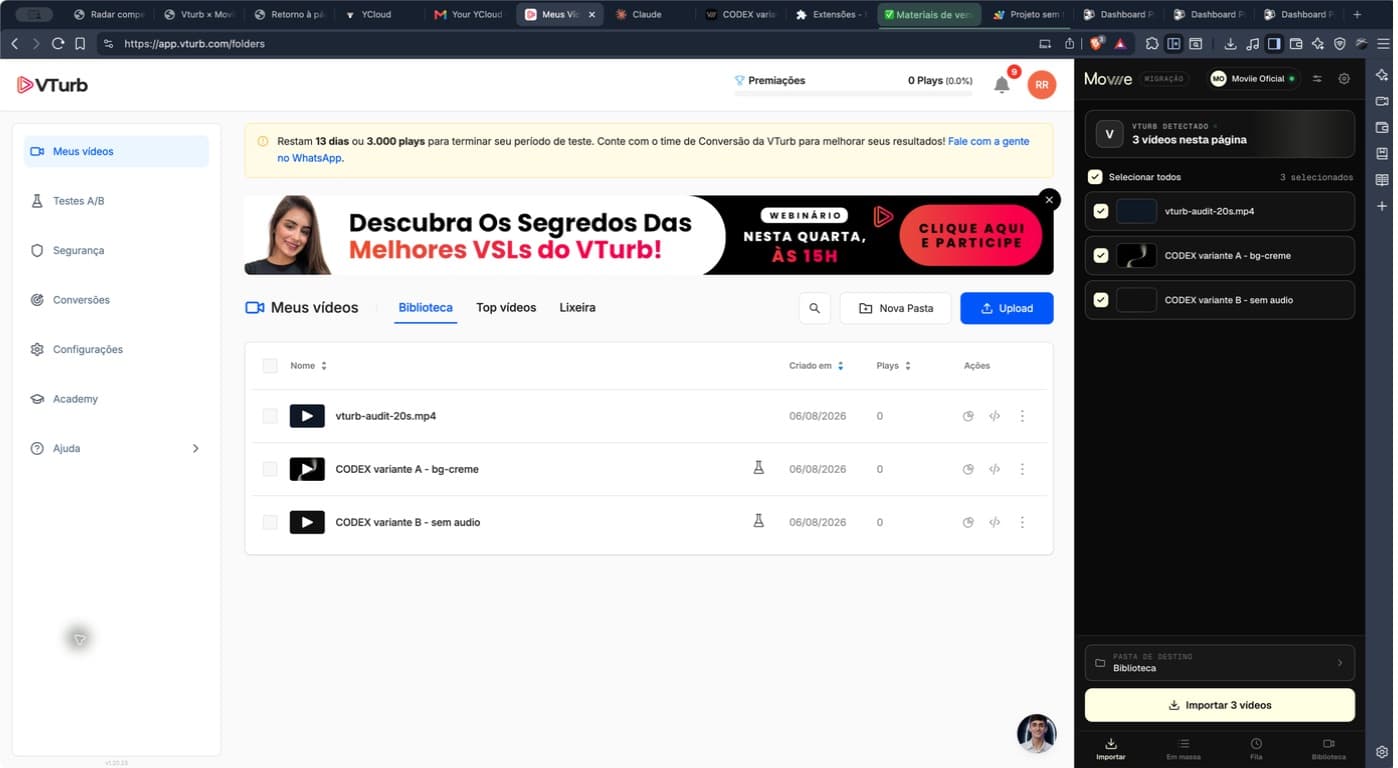
If the library is open but no video appears, reload the VTurb page and reopen the panel. Keep that tab active while detection runs.
Review and start the migration
Choose the destination collection and review metadata before confirming. The integration brings to Moviie:
- the video file in the best quality made available;
- the title shown in the VTurb library;
- the thumbnail made available by the player.
Descriptions, chapters, and captions appear in review only when the source provides them. The current VTurb library does not expose those fields through this flow, so review them in Moviie after import.
When a player uses DRM, the extension blocks the item before migration and shows a clear message. Do not try to bypass that protection; use an authorized original file.
Select Migrate to Moviie to add the items to the queue.
Follow the queue
Open Queue to follow download, transfer, and processing. You can close the panel while the work continues in the background.
Very short videos are accepted when they form a valid media file. If an item fails, read its queue message and use Try again only after resolving the stated cause.
Check the result
When an item shows Completed, select Go to video and check:
- title and thumbnail;
- destination collection;
- audio, when the source contains audio;
- quality and duration;
- playback from beginning to end.
Complete this review before publishing or replacing any embed. For detection or queue issues, see how to troubleshoot the migration extension.
Keep learning
Continue this task with the next guides:
Keep going
Guides that help with the next step.