
Player experience
How to reveal page elements during a VSL
Configure a video-synced action to reveal a checkout, offer, bonus, or any page block at the right moment in your VSL.
Video Actions connect the real playback time of a VSL to elements on the page where the player is embedded. You can start with a hidden checkout, offer, or bonus section and reveal it at the exact moment configured for the video.
The trigger follows the player. Pausing also pauses the action clock. Seeking forward or backward makes Moviie immediately recalculate whether the element should be visible. This is not an independent timer started on page load.
Before you start
You need:
- a video embedded with the complete Web code generated by Moviie;
- access to the page HTML or to the CSS class and ID fields in your page builder;
- a page block that can receive a stable class or ID;
- the pitch moment marked in Analytics if you want to use that trigger instead of entering a manual time.
Use the Web code exactly as copied from Moviie. Do not shorten or rebuild it manually, because an incomplete version may play the video without running page Actions.
1. Open Actions in Studio
- In the Library, open the video used in your VSL.
- Select Ações in the Studio navigation.
- Open Revelar página.
- Select Criar primeira ação.
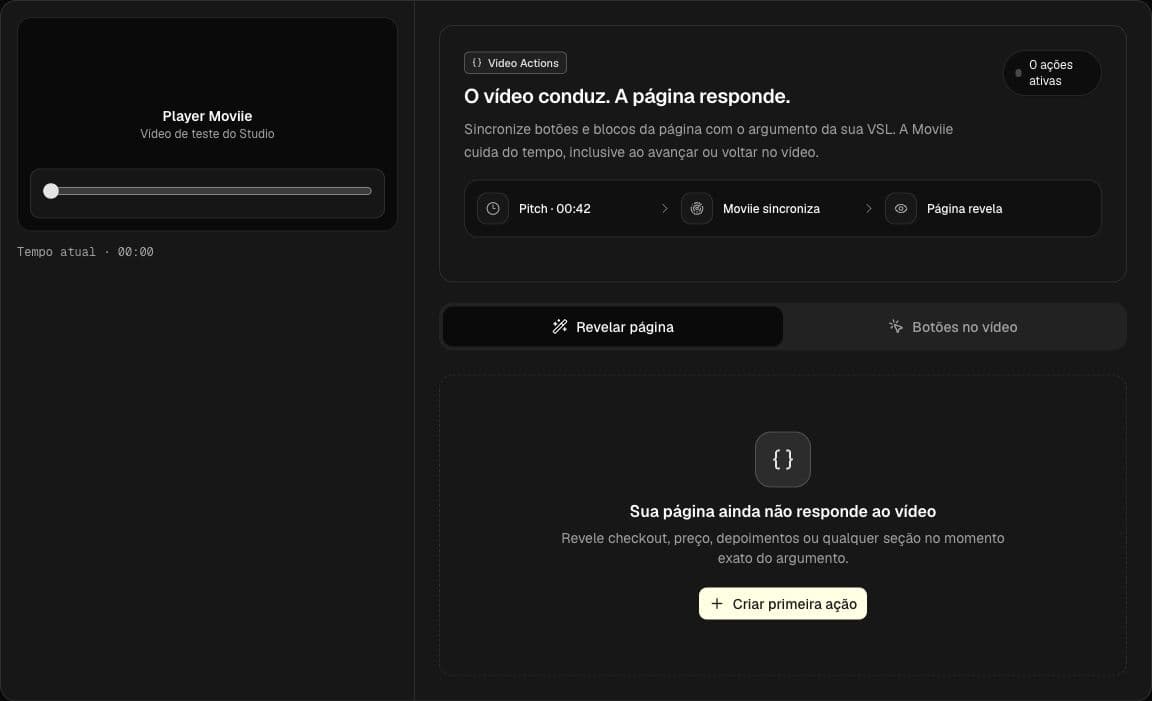
Configuration lives inside the Studio for that video and uses its real player as the time reference.
2. Prepare the page element
Choose a class for one or more elements, or an ID for one unique element. This example prepares an offer section with the offer-vsl class:
<style>
  .moviie-hidden-until-reveal {
    display: none !important;
  }
</style>

<section class="offer-vsl moviie-hidden-until-reveal">
  <!-- your checkout, bonus, or offer block -->
</section>
Place the .moviie-hidden-until-reveal rule in the page <head> or in the global CSS feature of your builder. This prevents the offer from flashing for a few milliseconds before the integration finishes loading.
For an ID, use:
<section id="offer-vsl" class="moviie-hidden-until-reveal">
  <!-- your checkout, bonus, or offer block -->
</section>
Class or ID
| Option | Use it when | Result |
|---|---|---|
| Class | several elements should respond to the same action | every element with that class is revealed |
| ID | there is one unique target block | the element with that ID is revealed |
Enter only offer-vsl in Studio. Do not include the dot for a class, the # for an ID, spaces, or other characters. Moviie accepts letters, numbers, hyphens, and underscores.
In Elementor, Webflow, and similar builders, enter offer-vsl in the CSS Classes or CSS Class field. For an ID, use CSS ID or HTML ID. The name must exactly match what you saved in Studio.
3. Set the target and timing
Under O que será revelado:
- Enter a descriptive Nome interno, such as
Main offer. - Choose Classe or ID.
- Enter the Nome no seu HTML without
.or#.
Under Quando acontece, choose:
- Momento do pitch to use the time marked in Analytics. If it has not been marked yet, Moviie prevents saving and tells you to configure it first.
- Tempo manual to enter a Revela em value in minutes and seconds.
Oculta em (opcional) determines when the element becomes hidden again. It must be after the start and no later than the video duration. Leave it empty to keep the element visible until the end of that playback.
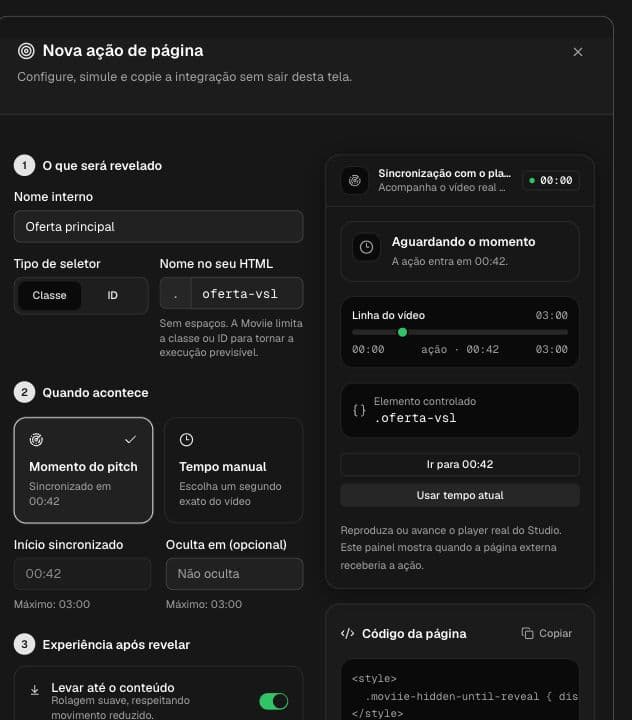
The timeline shows waiting, visible, and ended states while the VSL player remains the source of truth.
4. Configure the reveal experience
Enable Levar até o conteúdo to scroll the page to the first matching element. Under Compensar cabeçalho fixo, use a negative value to leave space above the block. For example, -80 px prevents a fixed 80-pixel header from covering the offer. The accepted range is -1000 px to 1000 px.
Scrolling is smooth by default. If the visitor has enabled reduced motion in their operating system, Moviie respects that setting and skips the animation.
Enable Manter revelado em visitas futuras to keep the element revealed when that person returns to the same page. This choice:
- applies only to the same browser and device;
- may be lost if the person clears browsing data or uses private mode;
- cannot be combined with Oculta em.
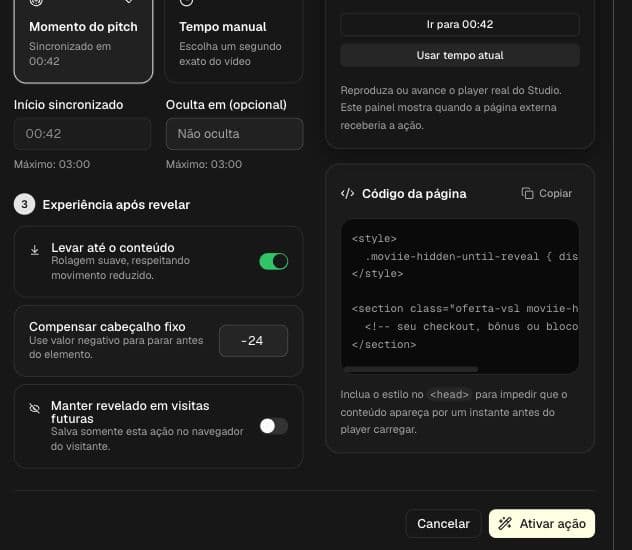
The form generates starter markup for the selected class or ID.
Select Copiar in Código da página, adapt the section content, and paste it into your site. Then select Ativar ação.
5. Test with the real player
Before publishing the page:
- Use Usar tempo atual to copy the current player position into the start field.
- Use Ir para to seek to the configured start or end.
- Play from a few seconds before the trigger and confirm that the target stays hidden.
- Cross the trigger and verify the reveal and optional scroll.
- Seek back before the start. Without persistence, the element should hide again.
- Seek past Oculta em. The element should become hidden again.
- Reload the page to test Manter revelado em visitas futuras.
- Repeat on a phone-sized screen and confirm the page builder does not use a different class or block for mobile.
Manage existing actions
After saving, each action appears in a card with its selector, start, end, scroll, and persistence state. Use:
- the switch to enable or disable the action without deleting its configuration;
- the pencil to edit and test again;
- the trash control to delete after confirming Excluir ação?;
- Nova ação de página to control another element.
Deleting an action does not change your site's HTML. If Moviie will no longer control that element, also remove moviie-hidden-until-reveal from the block. Otherwise, the initial CSS will keep the content hidden.
What to expect during playback
- Before the chosen moment, the block stays hidden.
- At the configured moment, the block appears and the page scrolls to it when Levar até o conteúdo is enabled.
- Seeking back before the start hides the block again, unless Manter revelado em visitas futuras is enabled.
- Moving past Oculta em hides the block again.
- A class can reveal several blocks at once. An ID should identify only one block.
Test on the published page or on a preview that loads the Moviie Web code. An isolated page-builder preview may not reproduce the final behavior.
Common problems
| Symptom | Likely cause | Fix |
|---|---|---|
| The block flashes before hiding | initial CSS loaded too late or is missing | place the rule in <head> and keep moviie-hidden-until-reveal on the target |
| Video plays but the block never appears | the Web code is incomplete or the name does not match | recopy Moviie's Web code and compare the class or ID character by character |
| Only some blocks appear | the class was not applied to every block | open each block in the builder and confirm the same class |
| Reveal happens at the wrong moment | manual time or pitch marker is wrong | use the player and Usar tempo atual, or update the pitch in Analytics |
| A fixed header covers the offer | the offset does not account for the fixed header | enter the header height as a negative value |
| The block is hidden on a later visit | the option is off or was tested in a different browser | enable it and test in the same browser outside private mode |
| Desktop works but mobile does not | the builder uses another block or class on mobile | apply the same selector to both blocks or create separate actions |
Avoid overlapping actions for the same selector. One action for each display period is easier to test and maintain.
Pre-publish checklist
- The site uses the complete Moviie Web code.
- The hiding CSS is in
<head>or global CSS. - The class or ID exactly matches the saved value.
- Start timing was tested by playing, seeking forward, and seeking backward.
- The optional end is after the start.
- Scroll and persistence work as intended.
- Desktop and mobile use the same target or have separate actions.
- The published page was tested before, during, and after the chosen moment.
Keep learning
Keep going
Guides that help with the next step.