
Player experience
How to create a CTA inside or outside the video
Configure text, image, or HTML, choose when the CTA appears, and use effects and auto-scroll without disrupting viewers.
Use a CTA to make the next step clear: buy, book, download a resource, or open another part of the experience. In Moviie, it can appear inside the video or remain outside the video, directly below the player.
Choose the position first
| Position | Use it when | Avoid it when |
|---|---|---|
| Inside the video | the decision should receive full attention, such as a final offer | the button would cover a demonstration, captions, or important information |
| Outside the video | the action should remain available without covering the picture | the page already has several competing actions |
Create the CTA
- Open the video and go to Ações.
- Select the CTAs tab.
- Select Adicionar CTA.
- Under Conteúdo, choose Texto, Imagem, or HTML.
- Enter the destination and review the preview.
- Review Exibição, Aparência, and Comportamento before saving.
The labels in bold match the current Moviie interface shown in the screenshots.
Choose the content
- Text is the fastest choice for one primary action.
- Image works when the creative is already part of the campaign. Add an accessible name that describes the action.
- HTML supports a custom HTML and CSS composition. Start with a template and review any adjustments shown in the preview. For a simple button, prefer Text or Image.
Use copy that completes the viewer’s thought, such as “See plans” or “Download the guide.” Avoid “Click here”: it does not explain the destination.
Decide when it appears
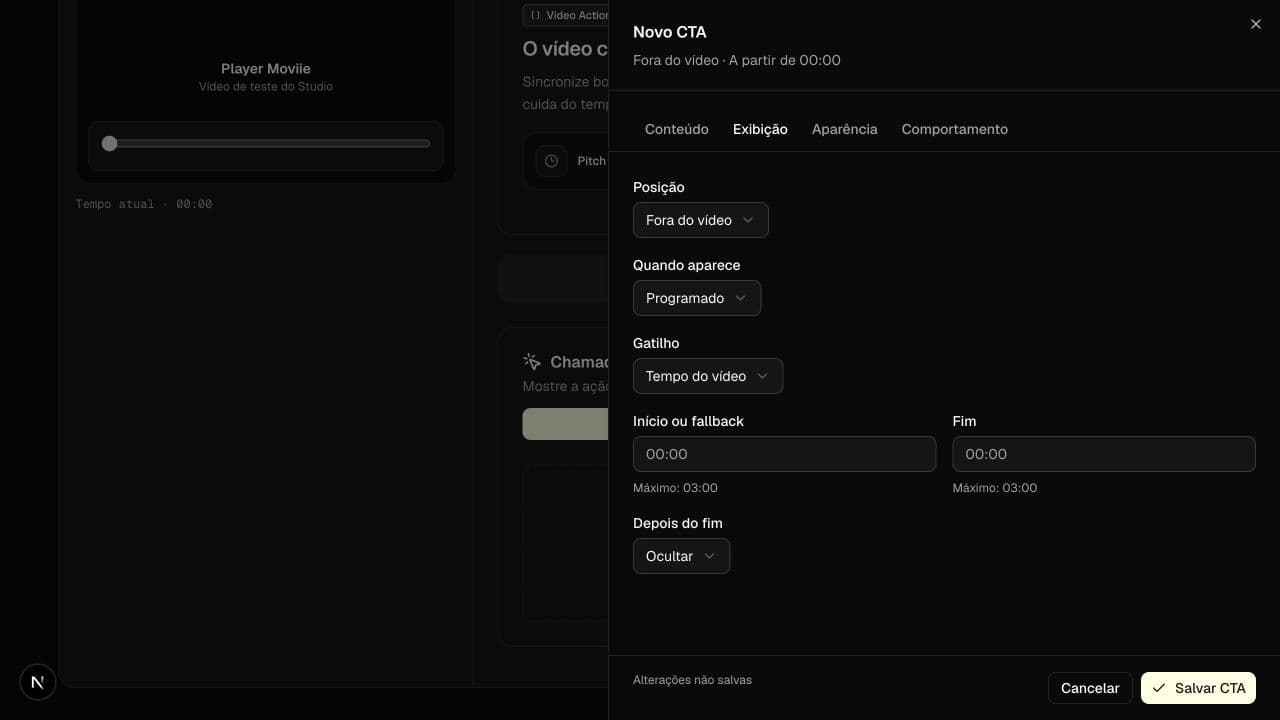
Under Exibição, choose Fora do vídeo or Dentro do vídeo, then select a rule:
- Always available: appears as soon as the experience is ready.
- Scheduled by time: uses the start and optional end time.
- Scheduled by pitch: follows the checkpoint marked as pitch. Início ou fallback remains the reference if that pitch is later removed.
Under Depois do fim, choose whether the CTA should hide or remain available. Moviie warns you when two actions try to use the same position during the same period.
Adjust appearance and effects
Under Aparência, choose size, color, and an effect for each moment:
- Entrance: fade, gentle rise, or scale.
- Attention: pulse, glow, or light sway.
- Hover: lift, glow, or scale.
- Click: short press feedback.
Intensity and speed apply to the set. Use the preview to assess the result before saving.
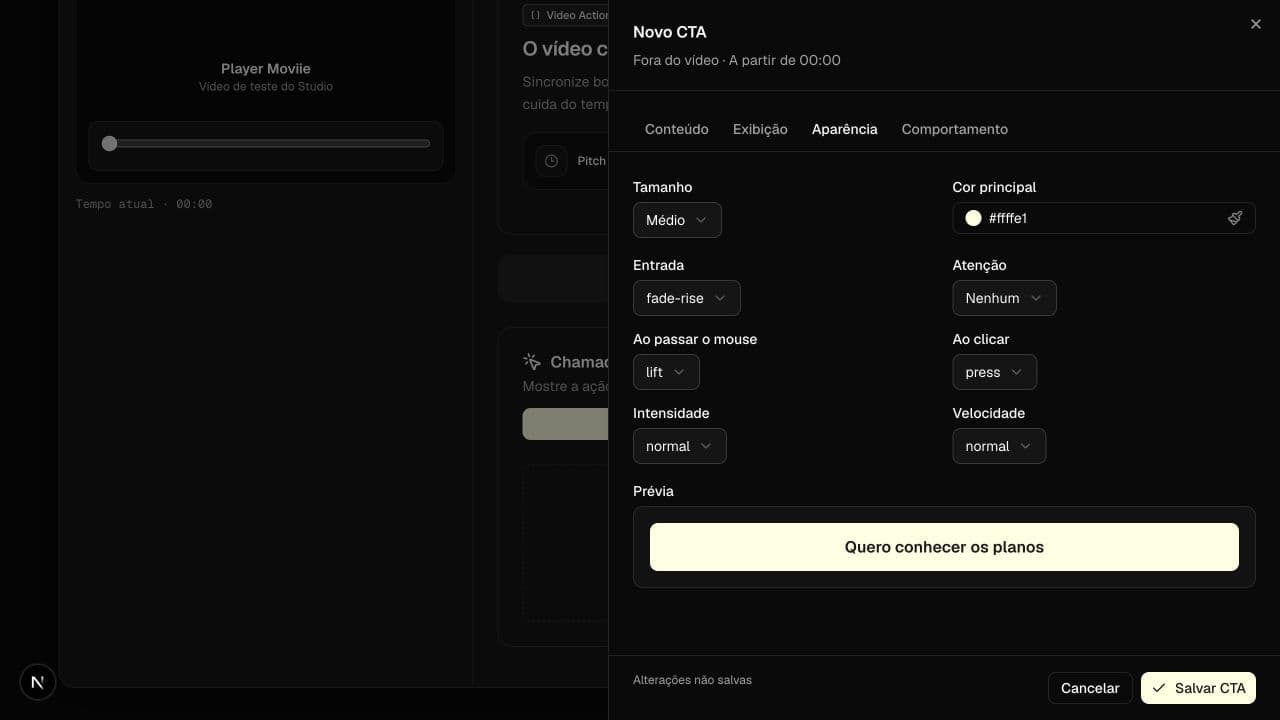
For a first test, use a gentle entrance, subtle hover, and no continuous attention effect. Moviie reduces motion for visitors who enabled that preference on their device.
Configure destination, parameters, and auto-scroll
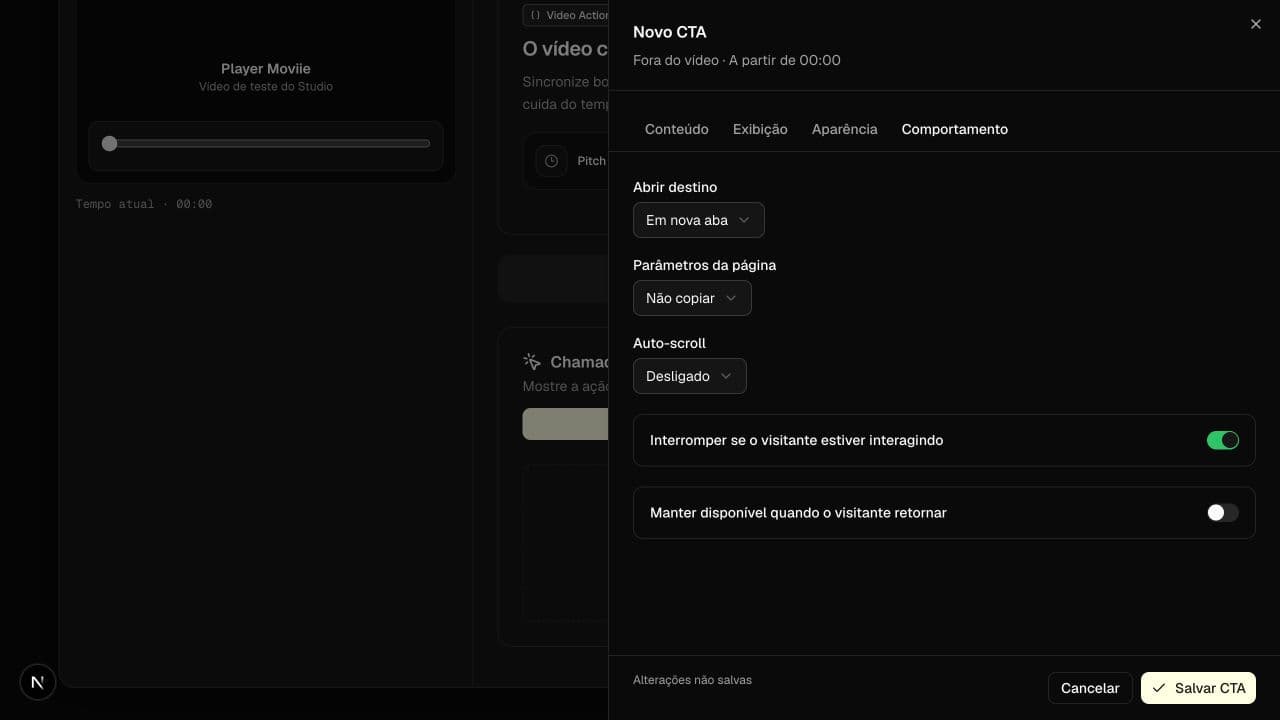
Under Comportamento, choose:
- whether the destination opens in the same tab or a new tab;
- whether to copy no parameters, marketing parameters, or other safe page parameters;
- whether auto-scroll is off, runs once per session, or runs on every appearance;
- whether scrolling should stop when the visitor is already interacting;
- whether the CTA remains available when the visitor returns.
Do not put email addresses, phone numbers, passwords, tokens, or other personal data in the URL. For campaigns, prefer UTMs and the ad identifiers already used by your operation.
A strong starting configuration
If you do not have a previous test, start with:
- One text CTA with one clear action.
- Outside the video when the picture must remain unobstructed.
- Appearance at the pitch or just after the promise becomes clear.
- Keep it available after the end when the offer still applies.
- Gentle entrance, subtle hover, and no continuous attention effect.
- Auto-scroll off; use once per session only when the CTA is usually below the fold.
- Review desktop, mobile, and keyboard navigation.
Edit, duplicate, deactivate, or delete
Use the actions in the CTA list to edit, duplicate, activate, deactivate, or delete. Duplicate a CTA when testing another message without rebuilding the setup. Deactivate it when you want to preserve the setup without showing it.
Confirm it works
Open the page where the video is embedded and confirm that:
- the CTA appears at the expected position and time;
- the destination and target tab are correct;
- mobile layout does not create horizontal scrolling;
- auto-scroll does not compete with an interaction in progress;
- the CTA remains readable with reduced motion enabled.
Then open Analytics → CTAs to compare impressions, clicks, and CTR. Low impressions usually point to position or timing. High impressions with few clicks call for a review of the message, timing, or destination.
If the CTA does not appear
Check whether it is active, whether playback reached the scheduled start, and whether another CTA uses the same place and period. For pitch timing, confirm that the checkpoint is still marked. For an outside-video CTA, update the page’s embed code if it still uses an older copy without the current player features.
Keep learning
Keep going
Guides that help with the next step.