
Player experience
How to create a VSL hook test
Configure variants, goals, traffic, and decisions for a hook experiment without replacing the embed on your page.
A hook test helps you compare VSL openings by using different complete videos in the same embed. Moviie distributes the variants among eligible visitors, tracks the goal you choose, and brings the results together in one dashboard.
Use it to answer questions such as “does a direct promise generate more plays?” or “does a curiosity-led opening bring more people to the offer?”. To interpret the result confidently, change mainly the hook and keep the rest of the variants as similar as possible.
You do not need to replace the code installed on the page when creating the test, making a decision, or rolling it back. The same embed remains in the same place.
Before you start
Prepare the following:
- an active embed that is already on, or will be added to, the sales page;
- 2 to 10 complete, available videos in the library;
- a clear hypothesis with an easy-to-recognize difference between variants;
- a CTA configured in the player if your goal is Unique CTA click.
- an active conversion integration if your goal is Purchase rate or Revenue per exposure.
Every selected item is a complete video, not only a short opening file. If you want to test only the hook, replicate the rest of the VSL in every variant.
Create the experiment
In the Moviie dashboard, open Experiments and select New experiment. The wizard organizes setup into four steps: Context, Variants, Goal, and Review.
1. Define the context
Under Internal name, enter a hypothesis your team will recognize later. Prefer a name such as “direct benefit vs. curiosity” over a generic name such as “test 1”.
Under Embed already on the page, choose the embed that will receive the variants. If the page is already live, select the exact embed used there. Its ID and snippet remain the same throughout the experiment.
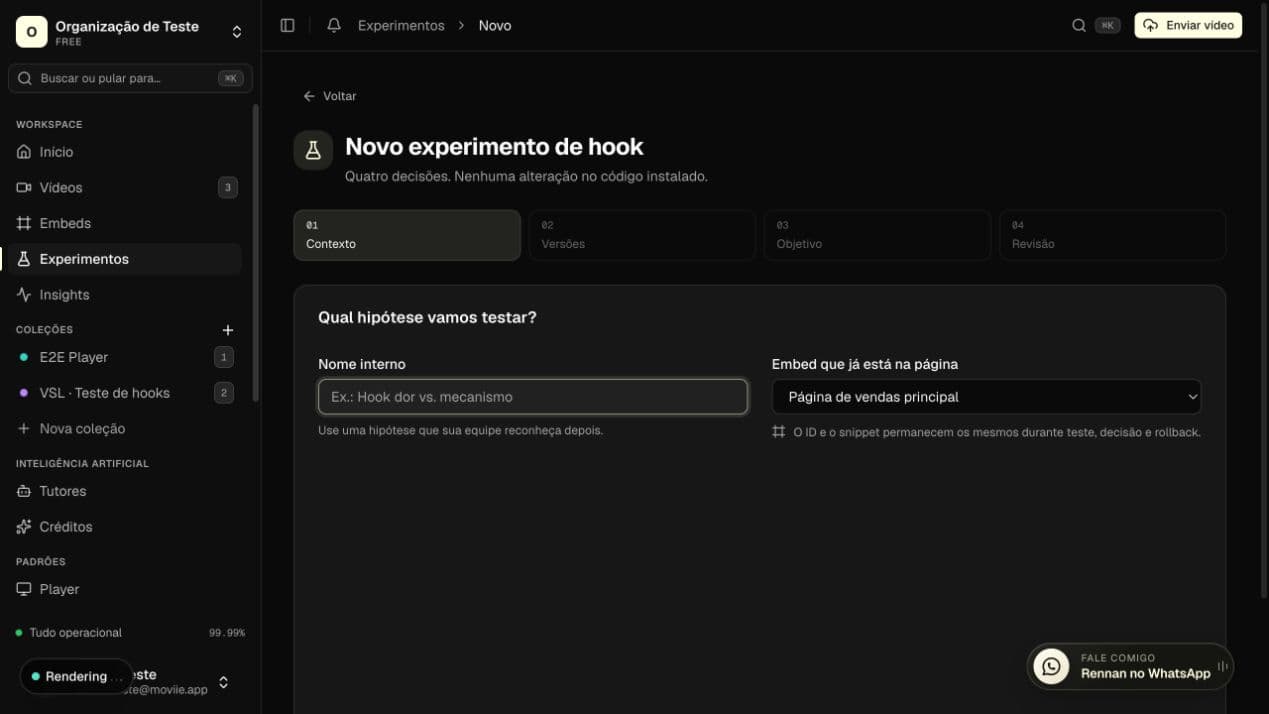
The first step records the hypothesis and links the test to the embed that will remain on the page. Interface labels in this screenshot are shown in Portuguese.
2. Choose variants and the control
Select 2 to 10 videos. The first selected video becomes the Control, but you can mark another variant as the control.
The control is the reference used to organize the comparison. It receives no automatic distribution advantage. A useful practice is to use the current VSL as the control and name the other videos after the hook change.
Only complete, available videos can join the test. If a video is missing, confirm that processing has finished and that it belongs to the same organization.
3. Choose the primary goal
You select one primary metric. This choice determines which result is emphasized in the dashboard and should match the question in your hypothesis.
| Option | What changes | When to choose it | What it does not mean |
|---|---|---|---|
| Unique play rate | Compares people who played with eligible exposures for each variant. | When the hook needs to overcome initial resistance and get the viewer started. | It does not measure retention, clicks, or purchases. |
| Pitch reach | Compares people who reached the offer point with eligible exposures. | When the hook's promise should hold attention until the pitch. | Manually seeking forward is not the same as watching continuously to that point. |
| Unique CTA click | Compares people who clicked the CTA with eligible exposures. | When a CTA is already configured and the goal is action in the player. | A click is not a sale, checkout start, or revenue. |
| Purchase rate per eligible exposure | Compares verified unique buyers with unique eligible exposures. | When the question is which VSL turns more visitors into paying customers. | Pending payments, abandoned checkouts, clicks, and test events are not purchases. |
| Revenue per unique eligible exposure | Divides verified net revenue in the dominant currency by unique eligible exposures. | When value per visitor matters more than buyer count alone. | Different currencies are never combined or converted automatically. |
The two sales goals remain visible but unavailable until an integration is active under Settings → Conversions. This prevents a test from starting without attribution keys, which cannot be added retroactively. If tracking is active but no attributed sale exists yet, the goal is available with a First verified sale pending notice.
The other metrics remain visible in the report. Choosing a primary metric prevents you from deciding only on whichever number looks most favorable after the test starts.
4. Set traffic distribution
With Equal, Moviie splits traffic evenly among variants. This is recommended for most tests because it makes comparisons simpler.
With Custom, enter the percentage for each variant. Every value must be valid and the total must equal exactly 100%. The continue button stays unavailable until the distribution is complete.
Use custom distribution only when you have a clear operational reason, such as limiting exposure to a riskier idea. A variant receiving less traffic will usually take longer to gather enough evidence.
5. Review and publish
In Review, check:
- the hypothesis name and selected embed;
- the primary goal;
- variants, control, and distribution;
- messages from the automatic check.
The check confirms that videos are available, there is exactly one control, distribution totals 100%, the embed is not being used by another active test, and sales goals still have active conversion tracking. Resolve every issue before selecting Create and publish.
Publishing makes the experiment ready for visitors. The analytics clock starts only with the first eligible exposure. Opening a dashboard preview is not the same as starting real traffic.
Monitor the experiment
Open Experiments and select the test. The header shows its current status:
- Published · waiting for traffic: the test is live but has not received an eligible exposure;
- Running: the test is receiving traffic and collecting results;
- Paused: collection is temporarily stopped;
- Concluded: a variant has been applied as the winner;
- Inconclusive: the test ended without enough evidence to name a winner;
- Archived: the test has been removed from the active workspace.
For each variant, the dashboard shows distribution, exposures, unique plays, pitch reaches, unique CTA clicks, fallbacks, and a Verified sales row. This row separates buyers, purchase rate, net revenue, and average ticket per buyer. Open a metric's information icon to inspect its numerator, denominator, and exclusions.
Buyers counts unique people, not postbacks. An order bump or upsell can increase revenue without counting the same person again. Approved purchases and subscription renewals count; pending payments, refusals, abandoned checkouts, tests, and unattributed sales do not. Refunds and chargebacks reduce net revenue. Multiple currencies remain separate.
A person is counted once per phase in unique indicators. These numbers should not be compared directly with total plays or repeated clicks shown elsewhere.
Decide on a winner
The dashboard tells you when a decision has enough support and lists any remaining conditions. Consider runtime, sample size, and the number of goal events. Do not name a winner only because one rate is temporarily higher.
When the test is ready:
- choose Selected variant;
- confirm with Apply winner;
- verify the Concluded status.
A decision is labeled evidence-based only when the selected variant leads the frozen primary metric. Selecting another variant requires an explicit, audited operational override even after minimum volume is reached. With purchase or revenue goals, this prevents paying-customer evidence from being ignored.
New loads of the same embed receive the selected variant. The embed on the page does not change.
If an operational need requires an early decision, the tool asks for a reason and confirmation that the action is not a statistical conclusion. Use this route for incidents or urgent decisions, not as a shortcut for ending tests early.
Roll back a decision
After applying a winner, select Roll back decision to restore the reference version. The rollback opens a new phase and preserves the previous history, so you can distinguish what happened before and after the change.
Purchases and refunds may arrive for up to 30 days after exposure. The dashboard preserves the decision snapshot alongside live results. If late data puts another variant at least 20% ahead with enough verified buyers, Moviie sends an alert. Traffic is never changed automatically; review the evidence and use the audited rollback when appropriate.
Check the page as a visitor after applying or rolling back a decision. The same embed should continue loading without changes to the installed code.
Practices for useful results
- test one primary hypothesis at a time;
- keep the offer, length, CTA, and rest of the script equivalent when the question is about the hook;
- choose the metric before publishing;
- avoid changing videos while data is being collected;
- do not treat a CTA click as a purchase;
- wait for the readiness indication whenever there is no operational urgency;
- document the learning, including inconclusive results.
Troubleshooting
The Experiments menu is missing: the tool may not be enabled for your account. Contact Moviie support.
There are not enough videos: wait for at least two complete videos to finish processing.
The embed is missing: confirm that it is active and linked to a video.
Publishing was blocked: another active experiment on the embed, invalid distribution, an unavailable video, or missing active conversion tracking for a sales goal will prevent publishing.
Purchase and revenue goals are unavailable: activate an integration under Settings → Conversions. Creating it after traffic has passed cannot attribute those sessions retroactively.
The dashboard reports degraded tracking: variants keep running, but sales may be undercounted. Open integration diagnostics and fix the postback before deciding.
The test is waiting for traffic: open the public page containing the embed. Dashboard previews, automation, and visits that do not meet measurement criteria may not be counted.
A rate looks good, but the decision is not ready: keep collecting traffic. A rate without enough time, sample, and goal events can change significantly.
Keep learning
Continue with these guides:
Keep going
Guides that help with the next step.