
AI features
How to create Viral Cuts from a video
Use AI to find strong moments, adjust cuts, framing and captions, and render vertical videos in your browser.
Viral Cuts finds moments with potential to work as short videos and lets you direct the result. AI suggests a hook, pacing, passages, digital camera changes, and a caption style. You decide what goes into the final file.
Potential is an editorial estimate. Moviie does not promise reach, views, or virality.
Before you start
Use an up-to-date Chrome or Edge browser on a computer. The video must be processed, contain detected speech, and have a completed transcript. The search uses AI credits; you see the cost before confirming.
The vertical file is rendered in your browser. Keep the tab open while it is being generated. Your choices and edits are saved to the server, but an interrupted render must restart.
1. Open the editor
- Open Vídeos and select the source video.
- Enter Studio.
- Under Vídeos de IA, select Cortes Virais.
- If there is no analysis yet, click Procurar cortes com IA.
- Review the cost and confirm.
You can leave Studio while AI searches for moments. The analysis will remain available in the same area when you return.
2. Review the suggestions
The queue shows the title, selection reason, duration, number of passages, and potential score. Select a cut to open it in the vertical player.
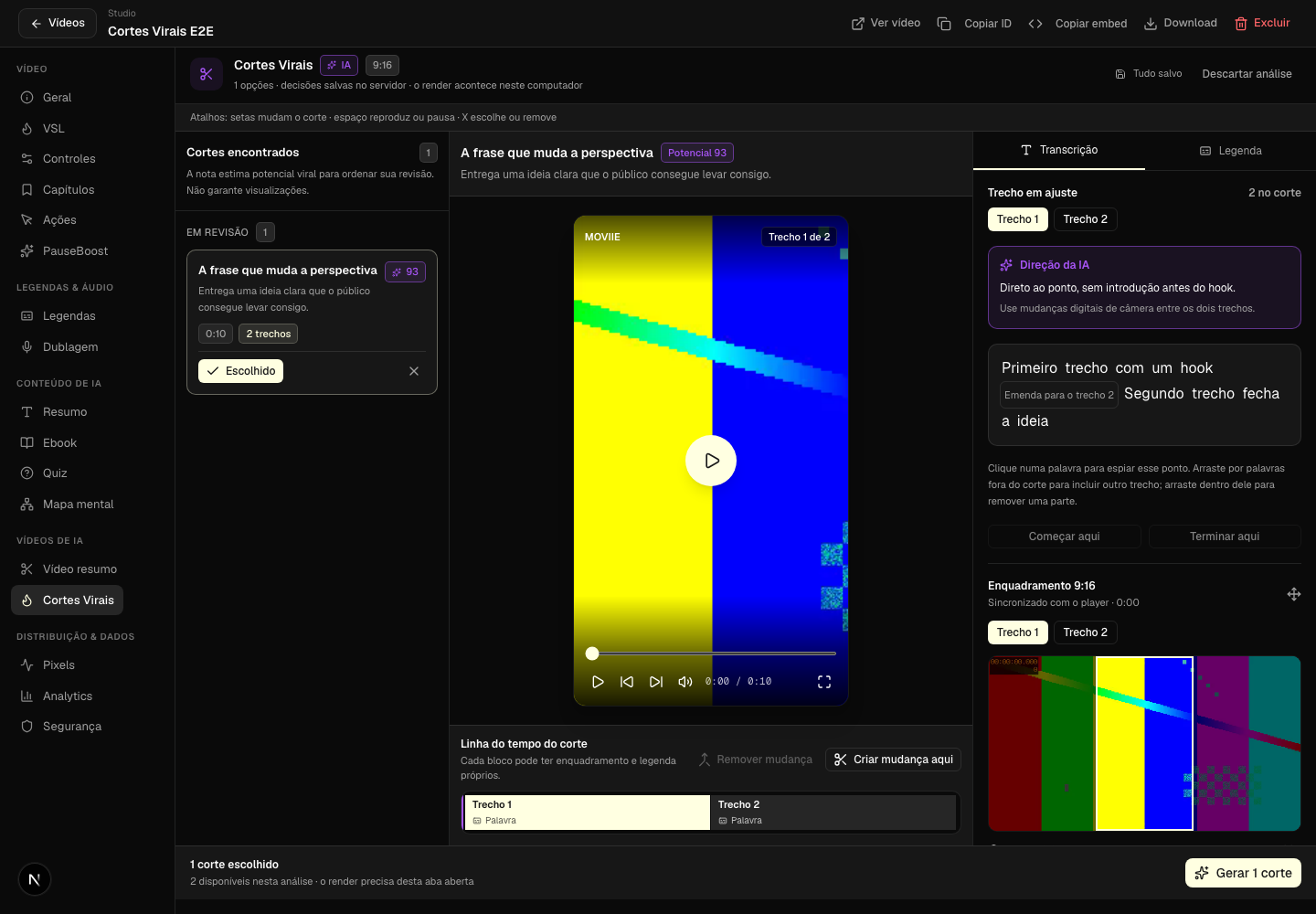
Use Escolher to include a cut in the render. Use the X to move it to Descartados por mim. The quota in the footer shows how many files can still be generated from that analysis.
Desktop shortcuts:
- Arrow keys: change the cut under review.
- Space: play or pause.
- X: select or remove the current cut.
3. Create changes on the timeline
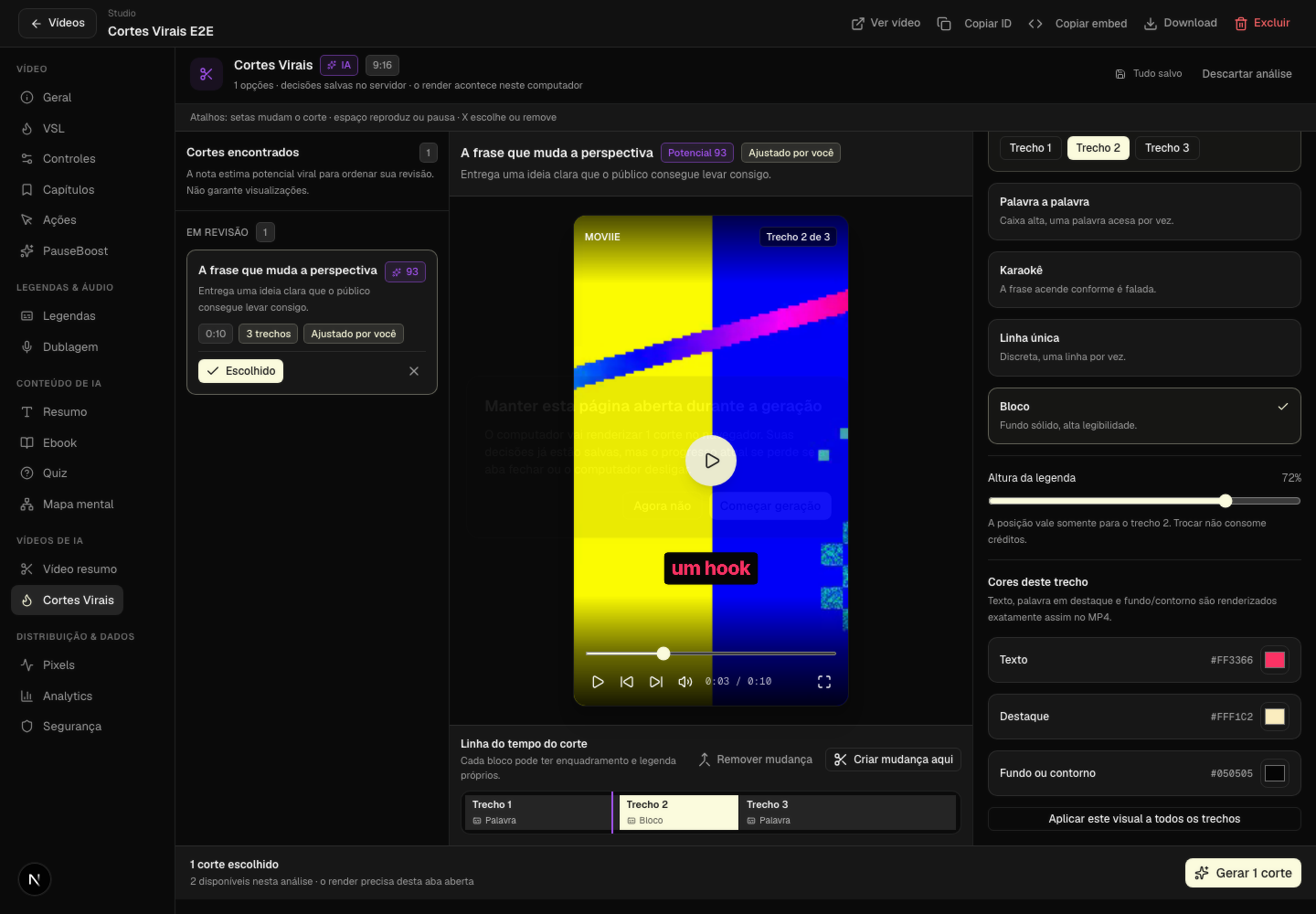
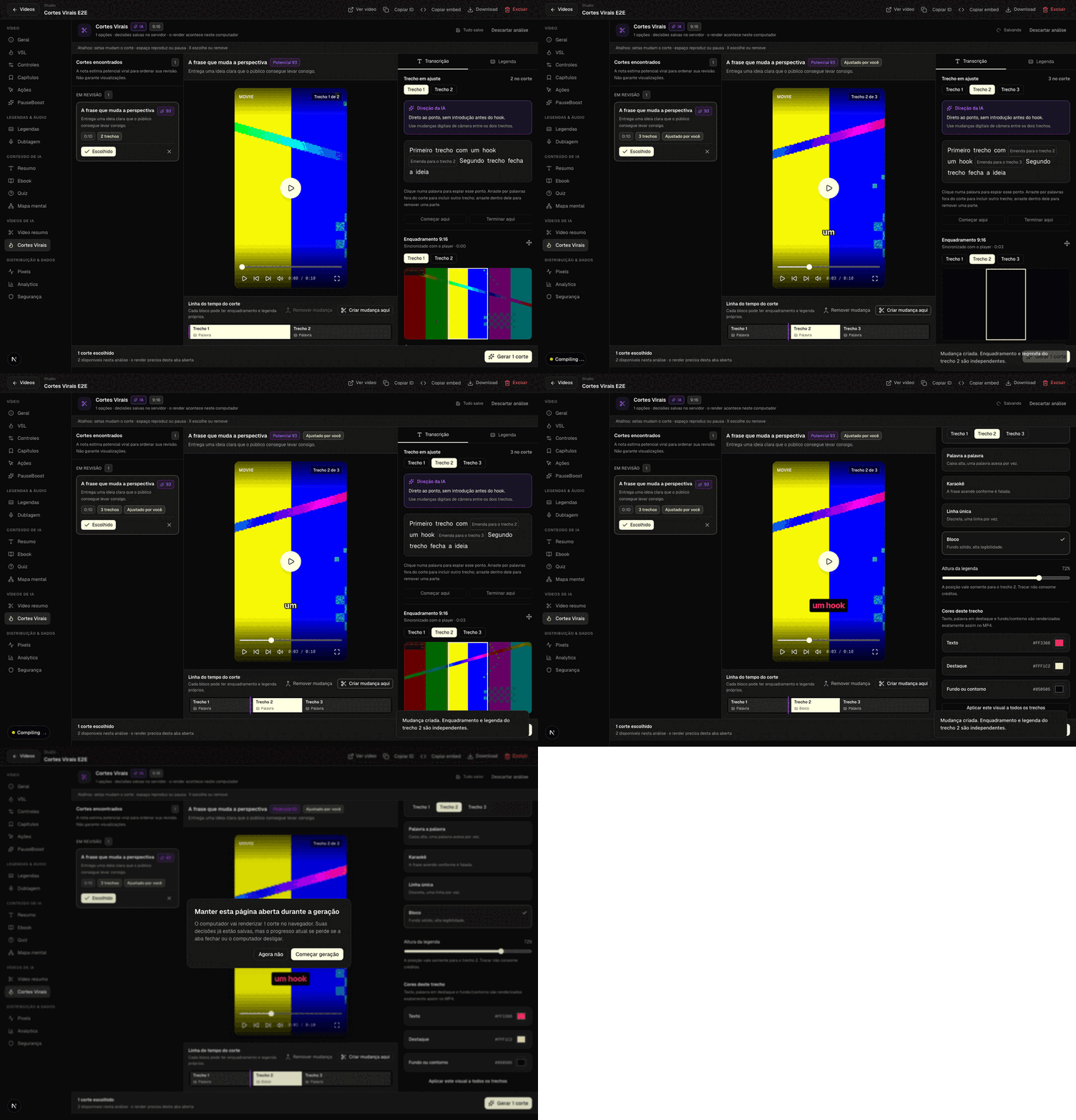
Every timeline block can have its own framing and caption design. Place the playhead where the composition should change and select Criar mudança aqui. The editor splits the passage at that point and selects the new block for editing.
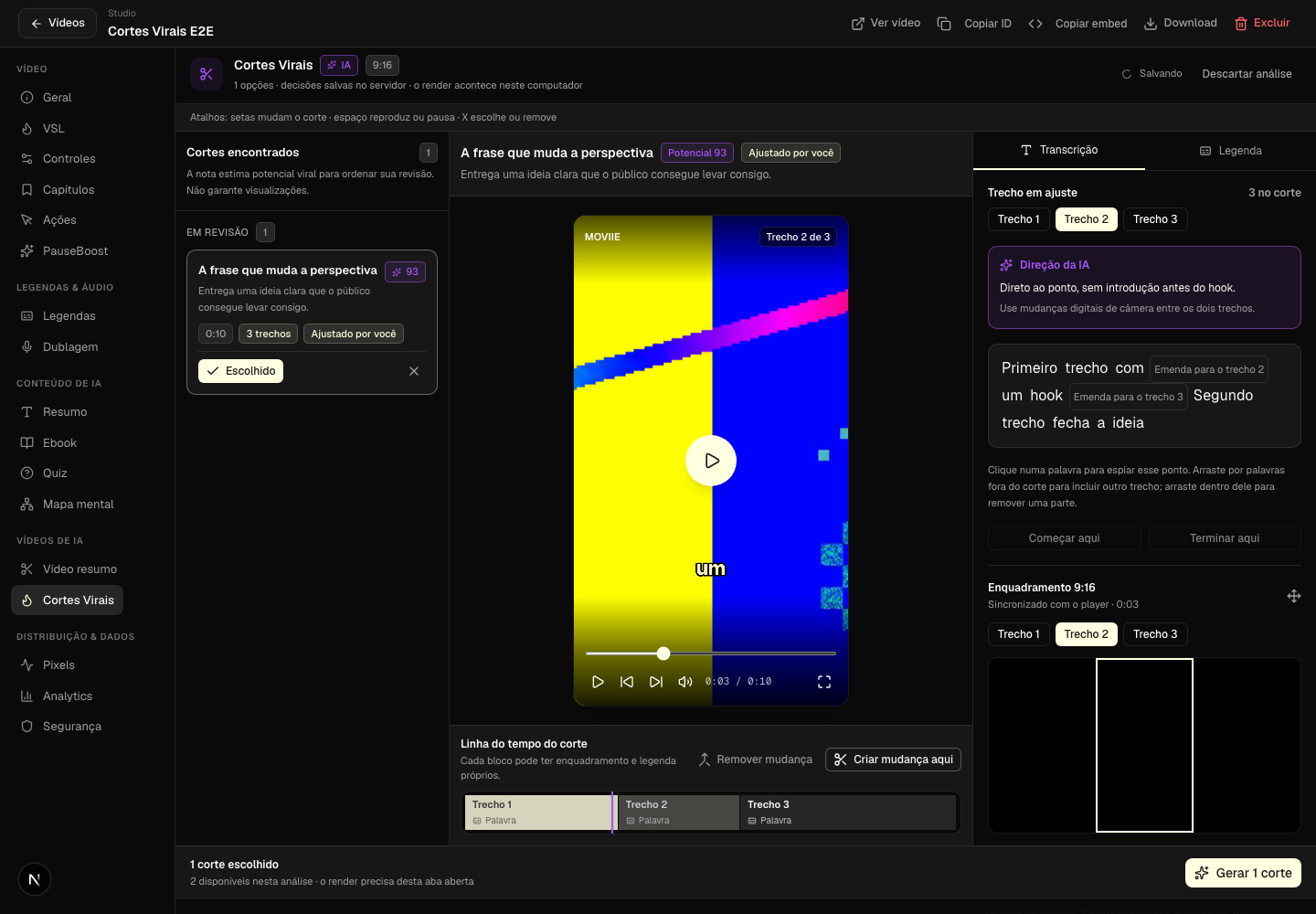
Select a block to return to its beginning. Use Remover mudança to join the selected block to the previous one. The transcript remains available for adjusting boundaries by word, removing a section, or including another non-overlapping passage.
4. Reframe each passage
In the camera control, choose Trecho 1, Trecho 2, or another passage, then drag the vertical frame over the important area. This panel follows the exact moment shown in the main player, including during playback.
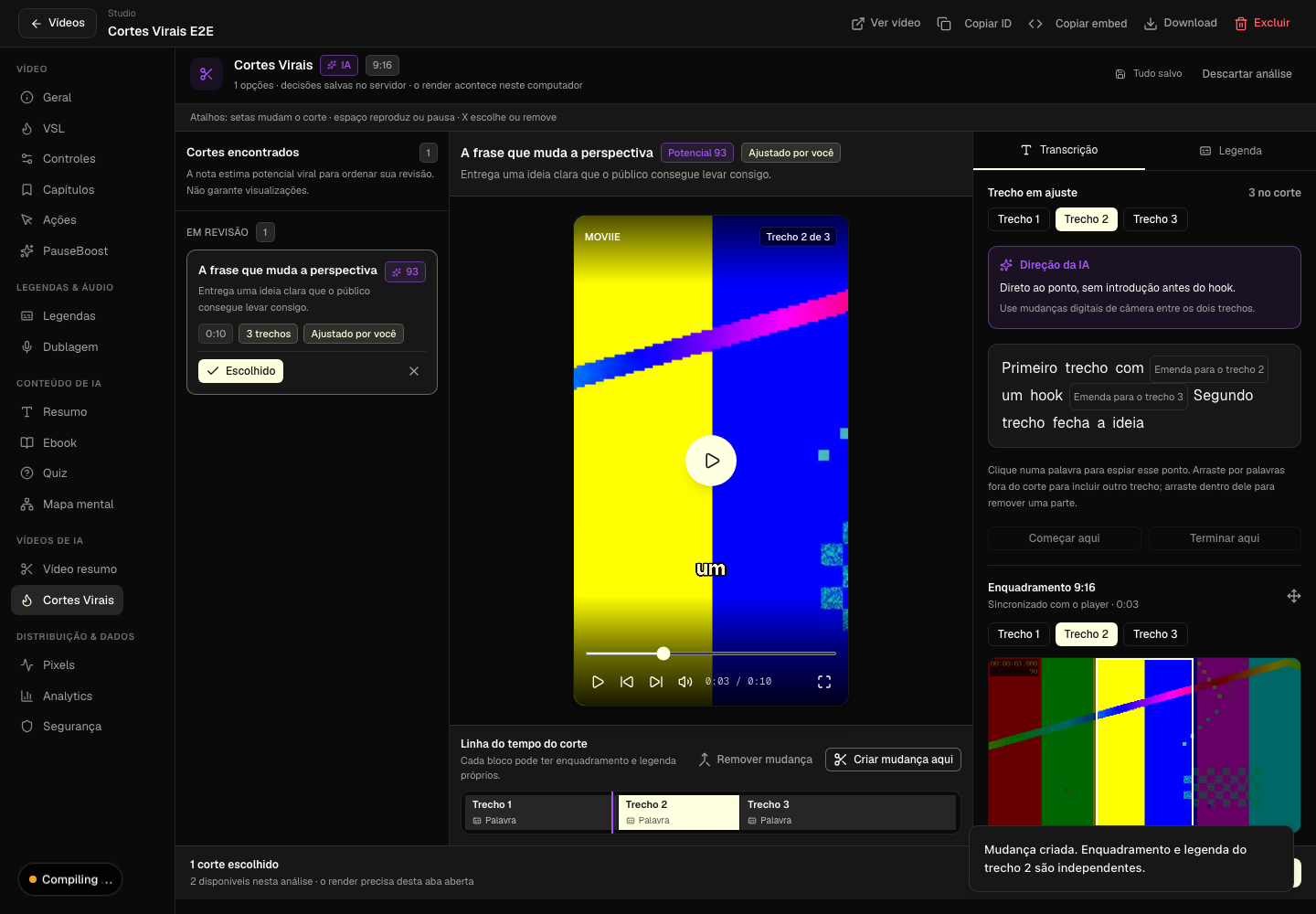
Framing is saved only for the selected passage. To change the camera from another moment onward, position the playhead, create a timeline change, and reframe the new block. The tool does not automatically track a person moving across the image.
5. Choose captions
Open Legenda and choose the passage you want to edit. You can set the style, height, text color, highlight color, and background or outline color independently for every block. The preview and the MP4 use the same choices.
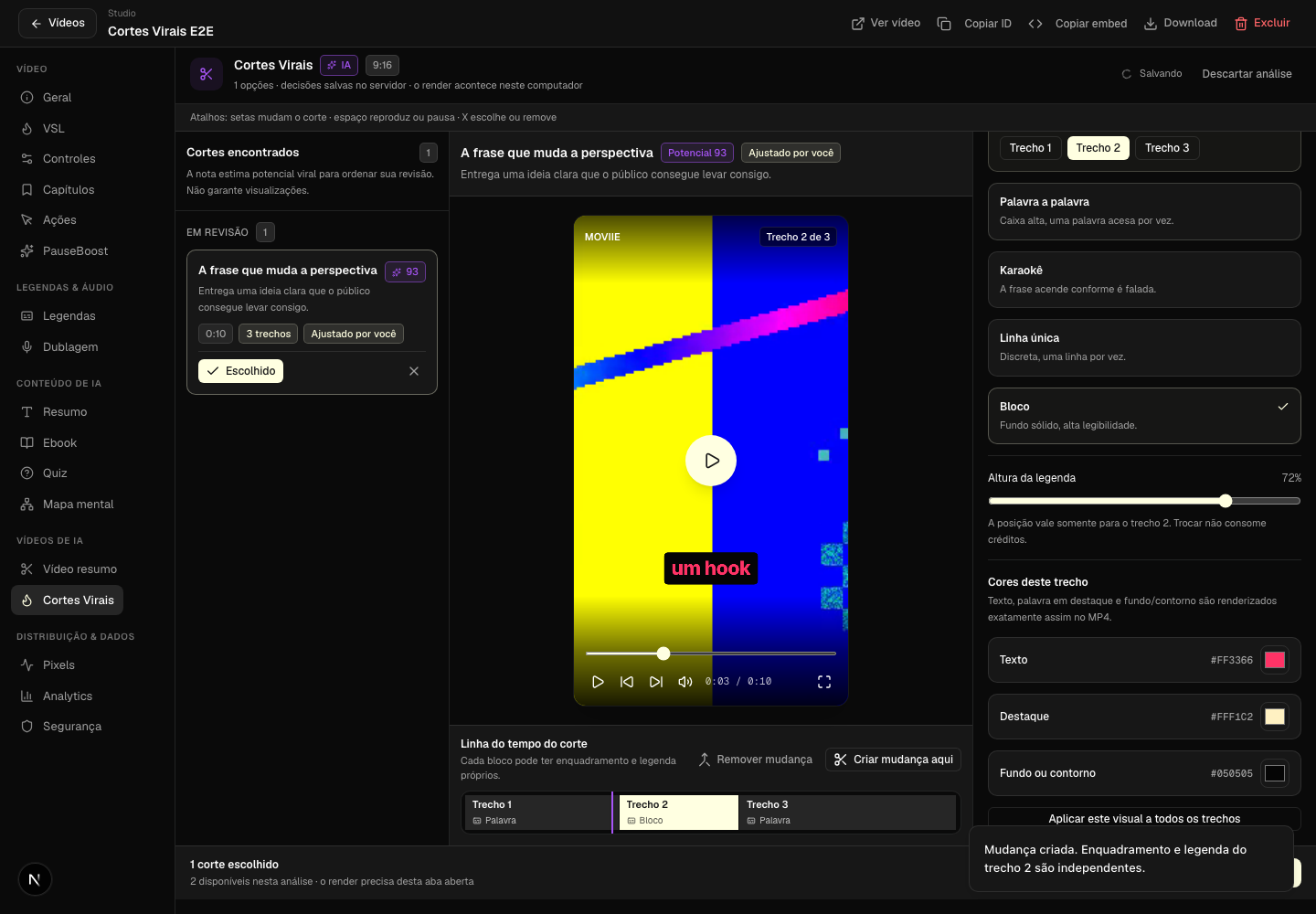
| Style | Behavior |
|---|---|
| Palavra a palavra | Highlights one word at a time. |
| Karaokê | Lights up the sentence as it is spoken. |
| Linha única | Keeps one discreet line at a time. |
| Bloco | Uses a solid background for stronger readability. |
Use Aplicar este visual a todos os trechos to repeat the current design. Changing captions, colors, or framing does not use extra credits.
6. Render and download
Click Gerar corte. Review the notice and select Começar geração. Moviie creates a 1080 × 1920 vertical MP4 in your browser, generates a thumbnail, and sends the completed files to your account.
When the status changes to Pronto para postar, use Baixar corte. The file can be posted to Instagram Reels, TikTok, or YouTube Shorts. Direct social publishing is not included in this version yet.
Troubleshooting
| Message or situation | What to do |
|---|---|
| The option is missing | Access is being rolled out gradually by account. |
| Transcript is not ready | Wait for video processing and try again. |
| Unsupported browser | Open the current Chrome or Edge version on a computer. |
| The tab closed during render | Return to the saved cut and start the render again. |
| The transcript changed | Start a new search to align cuts with the current text. |
| No suggestion was ready | Review moments rejected by the search and use the free retry shown on screen, when available. |
Keep learning
Continue this task with the next guides:
Keep going
Guides that help with the next step.