
Player experience
How to use PauseBoost when a video is paused
Upload an image or GIF, choose when it appears on pause, and configure an action that keeps attention on your VSL.
PauseBoost displays a creative when someone pauses the video within the interval you define. The image is not interactive: the viewer uses Continue watching to resume or a separate action button to open your offer.
Open PauseBoost
- Open the video you want to configure.
- In the video editor, select PauseBoost in the Vídeo group.
- Select Novo PauseBoost. If none exists yet, you can also select Criar o primeiro.
Upload and configure the creative
- Under Criativo, upload a JPG, PNG, WebP, or GIF file up to 5 MB. Video files are not accepted.
- Under Nome interno, enter a name that helps your team recognize the creative. Viewers do not see this name.
- Under Descrição acessível, describe the visual message for people who use a screen reader.
- Under Ativo a partir de, enter the point in the video from which a pause can display the creative.
- To limit its display, complete Até (opcional). The end time must be after the start time and within the video duration.
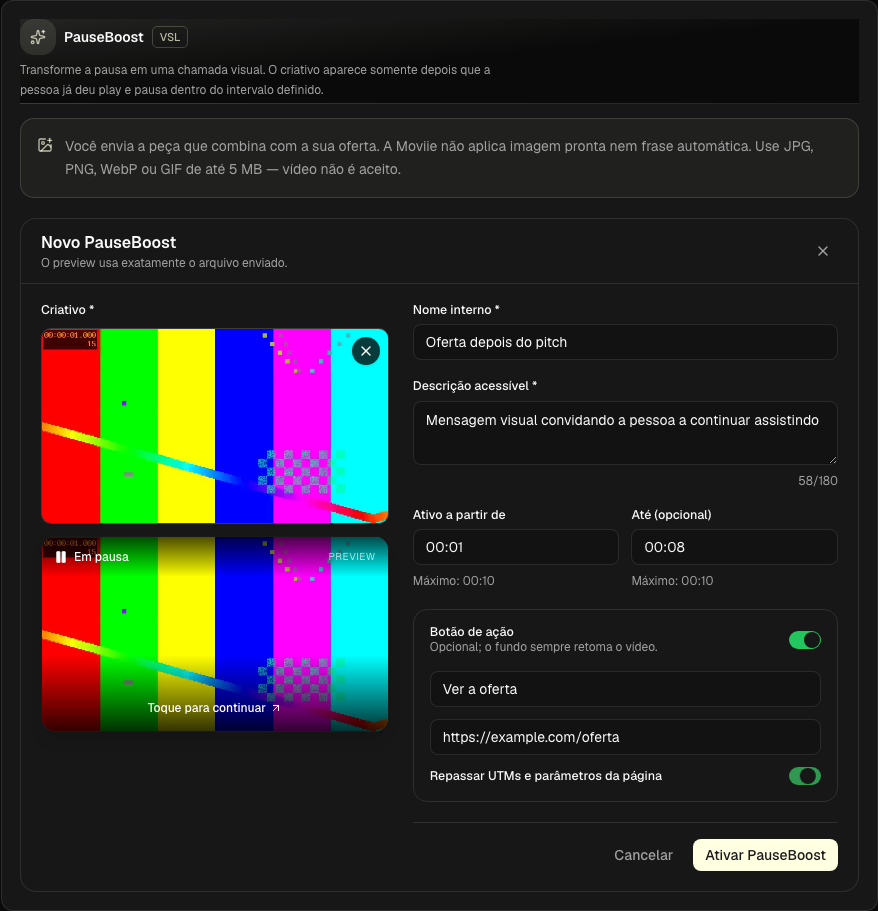
The preview uses the exact file you uploaded. Select the preview to check how resuming playback will work in the player.
Add an action button
- Turn on Adicionar botão de ação.
- Enter the button text and a URL that starts with
https://. - Turn on Repassar UTMs e parâmetros da página if you want to preserve the current page parameters in the destination.
- Select Ativar PauseBoost.
The button is a separate action: it opens the configured destination without automatically resuming the video. Continuar assistindo resumes playback; the artwork is not an invisible button.
Check it in the player
Open the page or embed containing the video, start playback, move into the configured interval, and pause. PauseBoost only appears after the viewer has started playback and makes a valid pause within that interval.
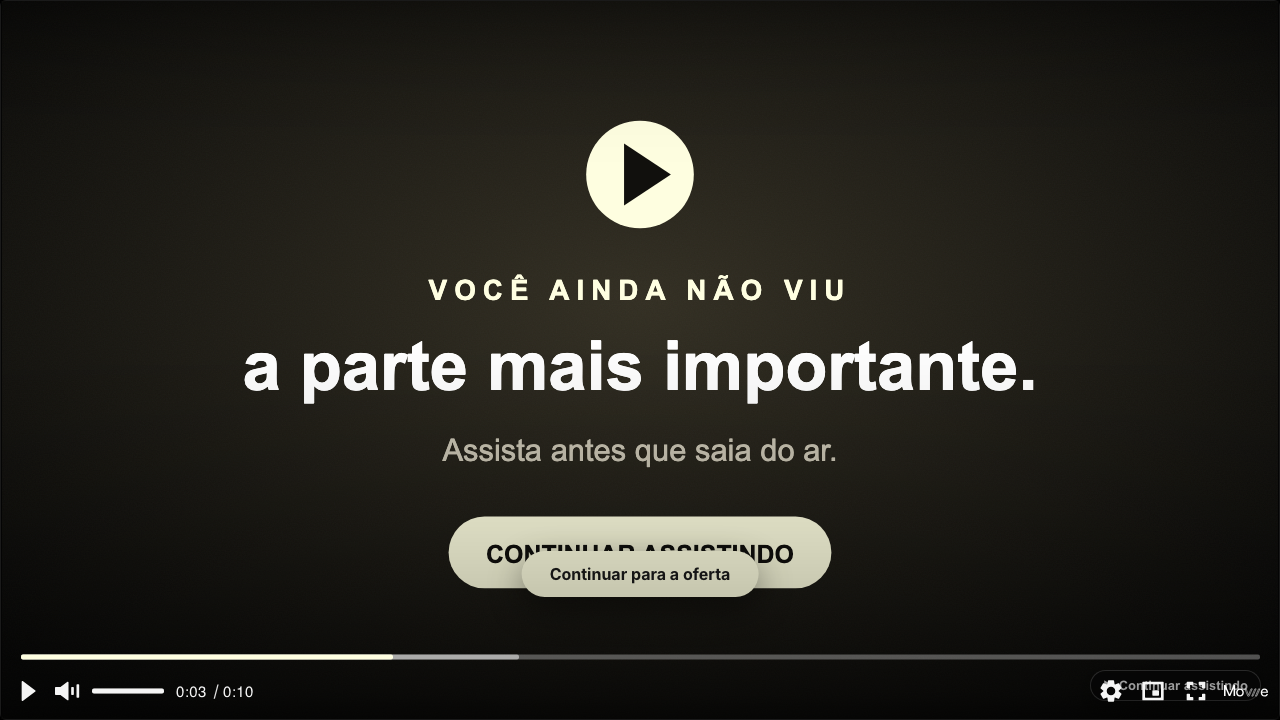
Select Continuar assistindo to confirm that playback resumes. If you added a button, also test its destination and URL parameters.
Show it at video end or use the pitch
Under Quando mostrar, choose Quando o vídeo terminar to replace the final frame. The image is not interactive: Assistir novamente restarts playback, while the action button opens its destination separately. A video can have only one active end rule. If the player loops, the rule stays saved but is not shown.
For a pause rule, Antes do pitch and Depois do pitch use the video's marked pitch and follow any later change to that point. Without a marked pitch, these options are unavailable and the rule is not shown.
Edit, disable, or delete
In the video's PauseBoost list, use Editar to change its settings or creative. Use the activation control to stop displaying it without losing the configuration. To remove it permanently, select Excluir and confirm the action.
Keep learning
Keep going
Guides that help with the next step.